Adding virtual try-on to a WooCommerce store was complicated and expensive two years ago. In 2026, it takes less than ten minutes and does not require a developer. This guide covers everything a WooCommerce clothing store owner needs to know: how virtual try-on works, why it matters for conversion and returns, what to look for in a plugin, and exactly how to get it running on your store today.
What Is Virtual Try-On for WooCommerce?
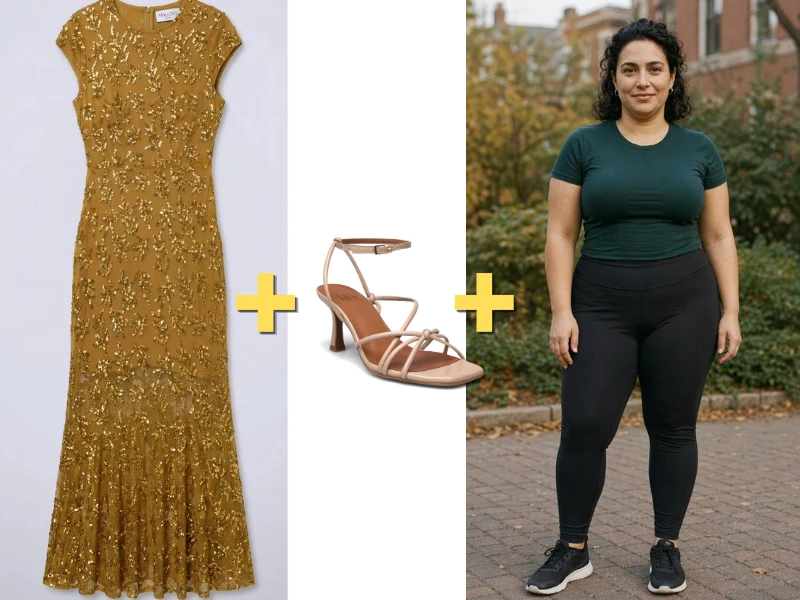
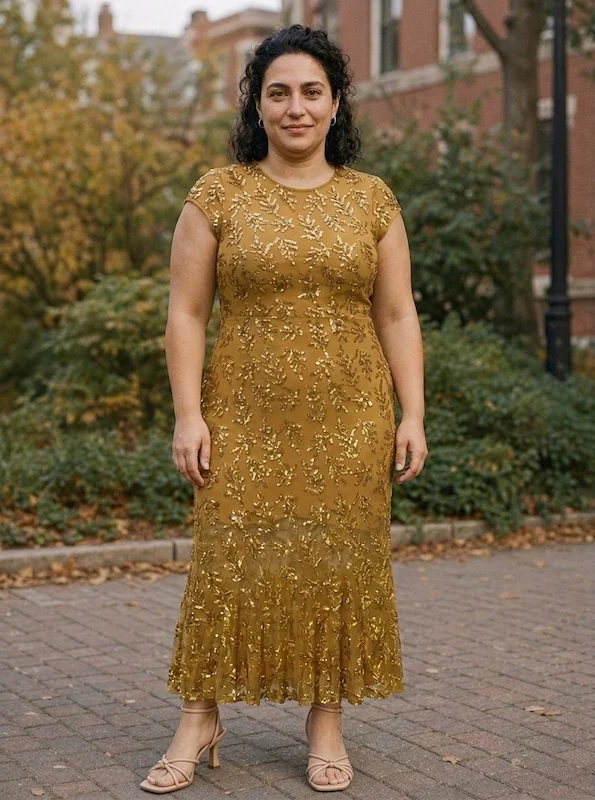
Virtual try-on for WooCommerce is a plugin feature that adds an interactive “Try It On” button to your product pages. Shoppers click the button, upload a photo of themselves, and see an AI-generated visualization of the garment on their own body — before adding the item to their cart.
The technology behind it is generative AI. When a shopper uploads their photo, the plugin sends it to an AI model that analyzes the garment from your product image and composites it realistically onto the shopper’s body. The result appears in seconds, directly on the product page. The shopper sees themselves in the dress, top, or jacket they are considering, without leaving your store.
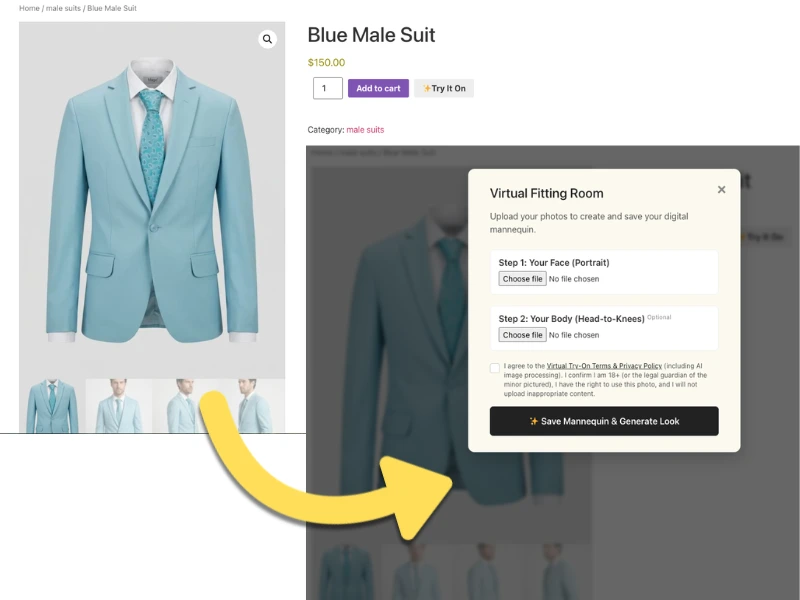
For WooCommerce specifically, this means a native integration: the “Try It On” button sits alongside your “Add to Cart” button, inheriting your store’s styling. No external redirect, no third-party app link, no separate platform account required by the shopper. The experience is frictionless and entirely within your store.
Why Virtual Try-On Matters for WooCommerce Clothing Stores
Fashion e-commerce has a structural problem that no amount of product photography alone can fully solve: shoppers cannot touch the fabric, assess the fit, or see how a garment moves on a body like theirs before buying. That uncertainty drives two of the most expensive problems in online clothing retail.
Cart abandonment. Fashion e-commerce cart abandonment sits at approximately 70% industry-wide. The leading cause is fit and appearance uncertainty — shoppers who are interested but not confident enough to commit. Virtual try-on directly addresses that hesitation by letting shoppers answer the most important question — “will this look good on me?” — before checkout.
Return rates. Online clothing returns average 19–30% across the industry, far above the 8–9% rate for in-store purchases. Each return costs a WooCommerce store owner in reverse logistics, restocking time, and lost margin. Retailers implementing virtual try-on reduce return rates by 17–35%, according to 2026 industry data. When shoppers can see themselves in a garment before purchasing, the product they receive matches their expectation — and stays.
Conversion lift. Retailers integrating virtual try-on technology are recording conversion rate increases of up to 40% on product pages where the feature is enabled. Style3D’s 2026 fashion tech research documents this figure consistently across mid-market fashion brands. Shoppers who use the try-on feature convert at significantly higher rates than those who do not, because the feature collapses the remaining purchase barrier: visual confidence.
These are not incremental improvements. A 40% conversion lift and a 25% reduction in returns on a WooCommerce store generating €10,000 per month in clothing revenue represent material business changes within the first quarter of implementation.
How to Add Virtual Try-On to a WooCommerce Store
There are several approaches to adding virtual try-on to WooCommerce, ranging from API-dependent DIY plugins to full-service native solutions. Here is what each approach actually involves:
Option 1: Generic AI Plugins Requiring External API Keys
Several plugins in the WooCommerce Marketplace and WordPress plugin directory provide virtual try-on functionality powered by external AI APIs — typically Google Gemini. The setup process requires you to create an account with the API provider, generate an API key, paste it into the plugin settings, and manage usage limits manually.
This approach works, but it introduces operational complexity. You are responsible for monitoring API usage, managing billing with a third-party provider, troubleshooting generation failures, and staying current with API changes that may break plugin functionality. For store owners without technical support, this is a meaningful ongoing burden.
These plugins also tend to offer narrower feature sets: basic shopper upload and try-on only, with no backend photoshoot capabilities, no daily limit controls, and no dedicated support structure built around fashion e-commerce specifically.
Option 2: A Native WooCommerce Plugin Built for Fashion Retail
The alternative is a plugin designed from the ground up for WooCommerce clothing stores — one that handles the AI infrastructure on its own backend, requires no external API key setup from the store owner, and covers both the shopper-facing try-on experience and the merchant-facing virtual photoshoot studio inside a single installation.
This is the approach that makes the most operational sense for independent and mid-market clothing stores. One plugin. One dashboard. No third-party API account to manage. No per-use billing surprises from an external provider.
What to Look For in a WooCommerce Virtual Try-On Plugin
Not all virtual try-on plugins for WooCommerce are built to the same standard. Before installing, evaluate any option against these criteria:
Garment compatibility. The most common limitation in virtual try-on tools is narrow garment support. Many handle tops and dresses adequately but fail on trousers, outerwear, hats, and shoes. If your store sells across multiple clothing categories, confirm the plugin generates accurate results for all of them — not just the easiest ones.
No external API account required. A plugin that requires you to create and manage a Google Gemini or similar third-party API account is offloading infrastructure responsibility onto you. A production-grade solution manages its own AI backend. You install the plugin, configure your store preferences, and the technology works — without an API key from a separate provider sitting between you and functionality.
Daily try-on limit controls. Any plugin that lets shoppers generate unlimited AI images without budget controls is a liability. Responsible implementations give merchants a configurable daily try-on limit that protects API budgets while keeping the feature available to genuine purchase-intent shoppers. This is a merchant-protection feature that separates serious tools from novelty implementations.
Backend photoshoot capability. The most operationally valuable virtual try-on plugins for WooCommerce offer more than a shopper-facing button. They also include a backend AI photoshoot studio — the ability to generate professional catalog images of your products on AI models, with background control, pose selection, and photography style options, directly inside the WP Admin dashboard. This transforms one plugin installation into a complete visual content solution: catalog photography and shopper try-on handled in one place.
Privacy and data handling compliance. This is not optional. Any plugin that invites shoppers to upload personal photographs must handle that data correctly. The non-negotiable standards: shopper images are never used to train AI models, images are processed in secure server memory and not stored beyond the session, and any retained files are permanently auto-deleted via a background process within a defined window. GDPR compliance in the EU and BIPA compliance in the United States are baseline requirements, not differentiators.
WooCommerce-native workflow. Generated images and try-on results should integrate directly with your existing WooCommerce product pages and media library. Any tool that requires manual export, format conversion, or cross-platform file management is adding friction to a workflow that should be seamless.
The Dual-Engine Advantage: Backend Photoshoot and Frontend Try-On
The distinction that separates enterprise-grade WooCommerce virtual try-on from basic implementations is what happens on both sides of the transaction — for the merchant and for the shopper.
For the merchant (backend): The virtual photoshoot studio inside the WP Admin dashboard lets you generate professional catalog images without booking a model, renting a studio, or hiring a photographer. Upload a flatlay or existing product photo. Select a model type — pre-existing AI models, a custom uploaded brand model, a randomly generated AI model, or a ghost mannequin. Choose your pose (front, back, side), background (via text prompt with Magic Scene generation), and photography style (editorial, street, vintage, studio). Generate. Save to your WordPress Media Library with one click and attach to your WooCommerce product gallery.
For a 50-SKU clothing store, this capability alone replaces an annual photography budget of €30,000–€80,000 with a plugin subscription.
For the shopper (frontend): A “✨ Try It On” button appears on the product page alongside the “Add to Cart” button. The shopper clicks it, uploads a face or body photo, and sees themselves wearing the garment within seconds. Their photo is reusable across your store — they upload once and try on as many products as they want during that session. The result answers the question that catalog photography alone cannot: how will this look on me specifically.
No other tool category in WooCommerce addresses both problems simultaneously. A standalone AI photography SaaS solves the merchant’s catalog problem but not the shopper’s confidence problem. A standalone try-on widget solves the shopper’s problem but not the merchant’s production problem. A plugin with both engines solves the full conversion equation inside a single WP Admin installation.
Privacy and GDPR Compliance: What WooCommerce Store Owners Must Verify
Adding virtual try-on to your store means inviting shoppers to upload personal photographs. In the EU, those images are biometric data subject to GDPR. In the United States, Illinois BIPA and a growing number of state-level privacy laws impose similar obligations. As the store owner deploying the plugin, you carry legal responsibility for how that data is handled.
Before activating any virtual try-on feature, verify the following from the plugin’s documentation or privacy policy:
- No AI training on shopper data. Uploaded images must never be used to train or improve AI models. This must be an explicit, documented commitment — not an implication.
- RAM-only processing. Images should be processed in secure server memory and destroyed immediately after the try-on is generated. Persistent server-side storage of shopper photographs is a compliance liability.
- Automatic deletion. Any residual files stored on your WordPress server must be permanently deleted on an automated schedule. Seven days is the industry benchmark. This should run as a background cron job without requiring manual intervention.
- No third-party data sharing. Shopper images must not be passed to third-party analytics, advertising, or data aggregation services.
These standards are not aspirational. They are the minimum bar for responsible deployment of any biometric-adjacent feature on a WooCommerce store. A plugin that cannot document compliance with all four points should not be installed.
Step-by-Step: Setting Up Virtual Try-On on Your WooCommerce Store
The implementation process for a properly built native WooCommerce virtual try-on plugin takes under ten minutes:
Step 1: Install the plugin.
From your WP Admin dashboard, navigate to Plugins → Add New. Search for the plugin by name or upload the ZIP file downloaded from the plugin provider’s website. Click Install Now, then Activate.
Step 2: Configure global settings.
Navigate to WooCommerce → Settings → Virtual Try-On (or the equivalent settings panel for your plugin). Set your daily try-on generation limit to a number that reflects your traffic volume and budget — a conservative starting point for a boutique store is 50–100 per day. Enable the feature site-wide.
Step 3: Enable try-on per product.
Go to Products → All Products. Open a clothing product. In the product data tabs, locate the Virtual Try-On option. Toggle it on. Save. The “Try It On” button will now appear on that product page alongside your standard Add to Cart button.
Step 4: Test the shopper experience.
Visit the product page as a customer would. Click the try-on button, upload a test photo, and confirm the generation works correctly and that the result accurately represents the garment. Review the output against the physical product before enabling it across your full catalog.
Step 5: Generate backend catalog images (if your plugin supports it).
Navigate to the backend photoshoot studio within your WP Admin. Select a product, upload a flatlay or existing product image, configure your model type, pose, and background, and generate. Save the output directly to your WooCommerce product gallery. Replace any low-quality or mannequin-only images with AI-generated on-model photography.
Step 6: Monitor and adjust.
Review try-on usage data in your plugin dashboard weekly. If you approach your daily limit consistently, increase it. Monitor return rates on products with try-on enabled compared to those without. The performance data will tell you where to prioritize rollout across your remaining catalog.
The Bottom Line
Virtual try-on for WooCommerce is no longer a feature reserved for enterprise fashion brands with dedicated tech teams. In 2026, it is a plugin installation — one that addresses the two most expensive problems in online clothing retail simultaneously: the shopper’s confidence problem and the merchant’s photography production problem.
The stores moving fastest in WooCommerce fashion right now are the ones replacing guesswork on both sides of the transaction. Shoppers who can see themselves in a garment before buying convert at higher rates and return less. Merchants who generate professional catalog imagery inside their WP Admin dashboard spend less time and money producing content and more time selling.
WooCommerce clothing store owners can install AnyDress AI, activate the virtual try-on button on their product pages, and run a backend photoshoot for their entire catalog — all inside WordPress, with no external API account, no developer required, and no per-image billing surprises. The 3-Day Free Trial includes 20 credits, enough to generate a full multi-angle product set and run live shopper try-ons before any financial commitment.
Start your free trial at anydress.ai.